
Test models and choose one
Once a feature has an answer key, you can test any model your app can use against it, see which does best, and make it live, with the evidence on the record. This guide walks through it on a feature’s page.
Test the models
Section titled “Test the models”The Models table lists every model the feature can use. Press Test
every model to test them all, or open a row’s menu (⋮) and choose
Test to test just that model. The menu shows what the test should
cost first (~$0.16), or “free” when every answer can be reused from a
test in the last week.
A test sends every case in use to the model, grades each answer with the suite’s checks, and records what each answer cost and how long it took. The page refreshes while it runs. A long test keeps going in the background; you can leave the page.
Read the board
Section titled “Read the board”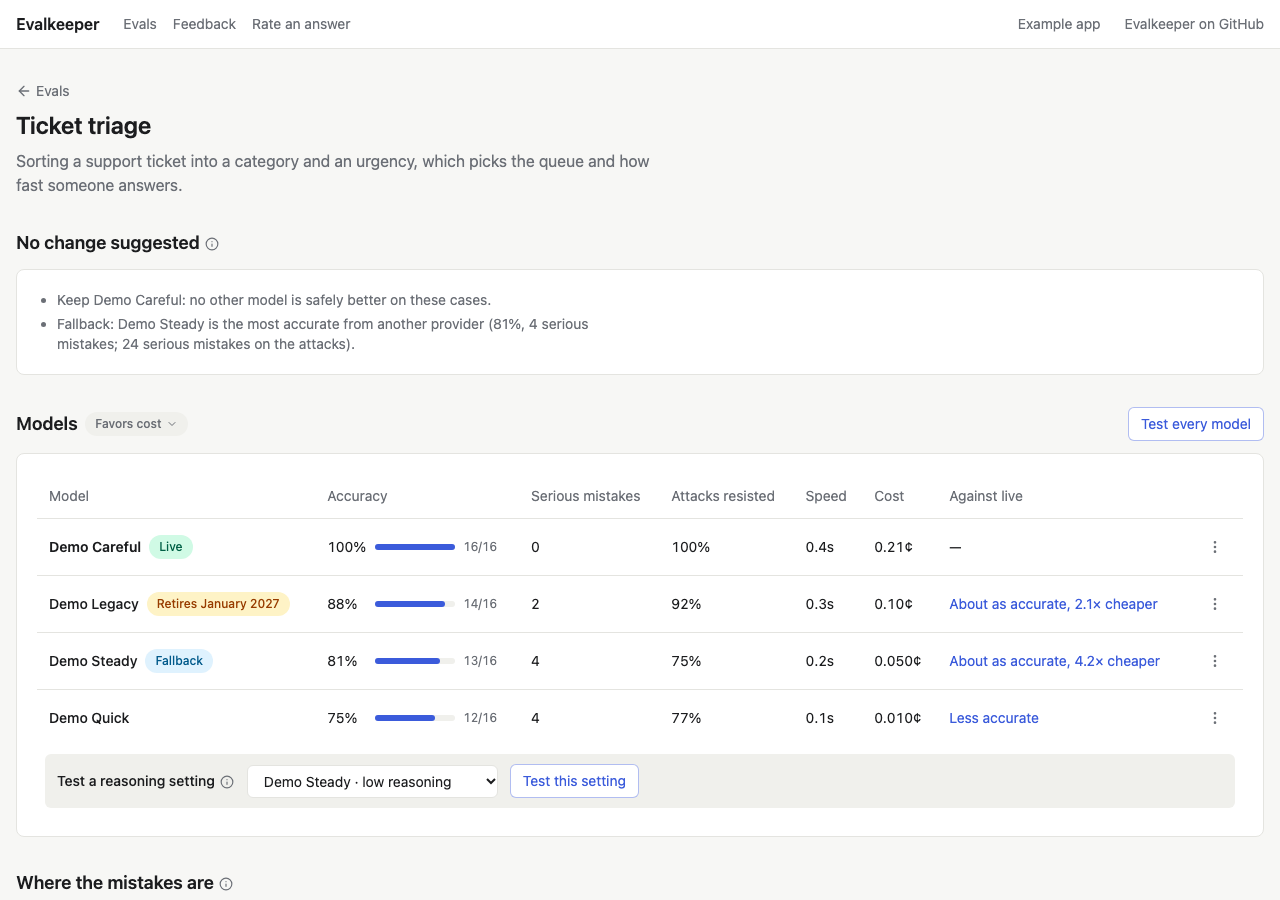
For each model:
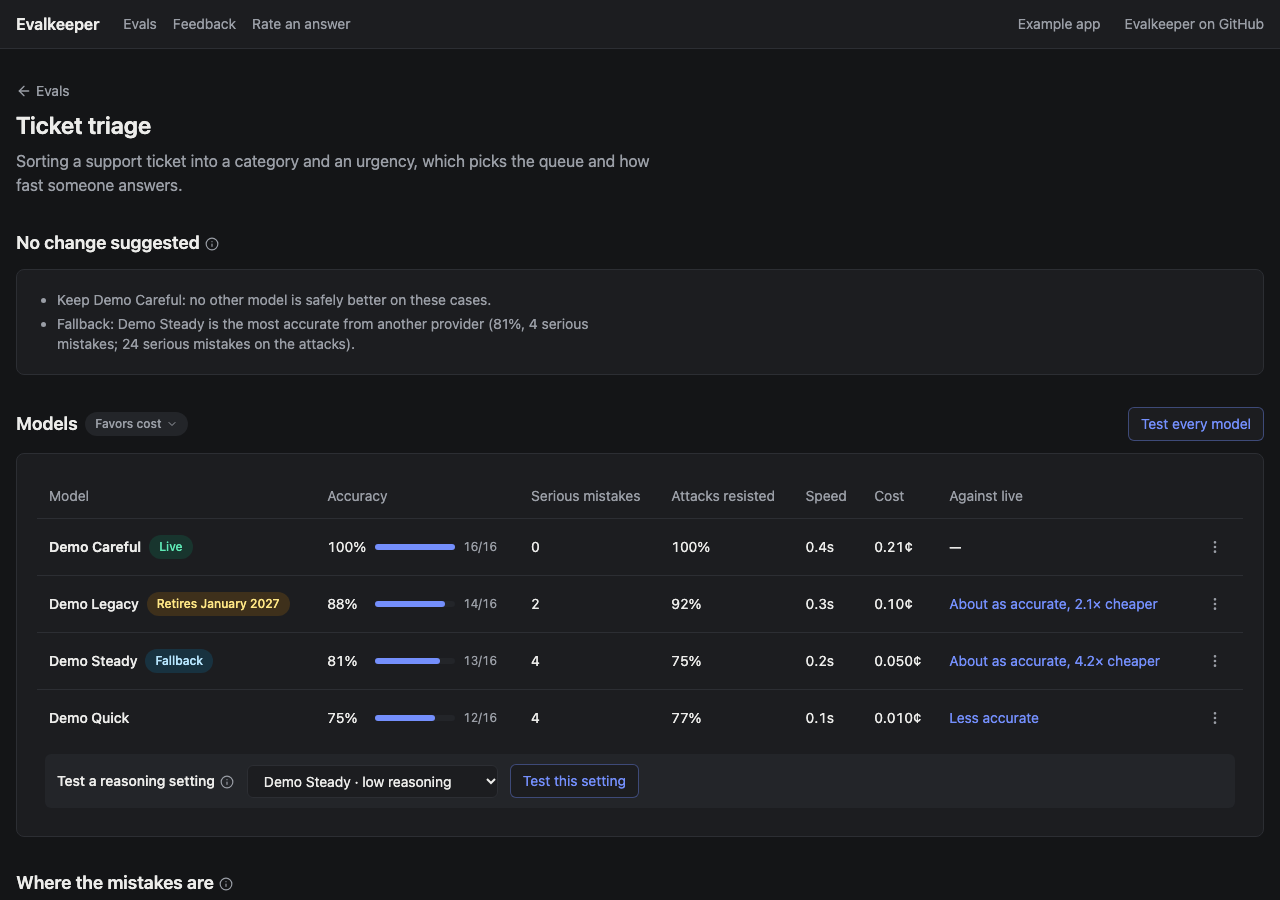
- Accuracy: the share of the checks it passed, with partial credit, and how many.
- Serious mistakes: answers that would change what your product does (the wrong queue, a missed urgent ticket). Fewer is better, and it matters more than accuracy.
- Speed and cost: seconds and cost per answer.
- Against live: is it More accurate, About as accurate, or Less accurate than the live model, or are there Too few cases to tell? Evalkeeper works this out from the cases both tested, not from the gap between scores, so a 3-point gap on 16 cases isn’t called a win. When it’s about as accurate, it says what it gains on the feature’s priority: “About as accurate, 4× cheaper”.
Beside Models, Favors cost, Favors speed, or Favors
accuracy says what the feature weighs once accuracy holds. It starts as
the suite’s priority in code. Press the chip to see what it means and
pick another, with an optional reason: it’s saved as a new settings version,
so it shows under Versions with who and why, and rolling back undoes
it. The suggestion, the row order, and the feature’s card on the hub all
follow it. The rows
come in the order the suggestion weighs them: the suggested model, then
live, then the rest by fewest serious mistakes, then accuracy, then the
priority. Suggested and Suggested fallback mark its picks.
There’s no blended score: cost and speed only ever break ties between
models that are about as accurate.
A model marked Out of date was tested before the instructions, the cases, or the checks changed. Test it again before trusting its numbers.
Test a reasoning setting
Section titled “Test a reasoning setting”Some models think before answering, and how much is a setting. Less is
faster and cheaper; more can be more accurate. The table’s last row,
Test a reasoning setting, lists each model with the settings your
catalog gives it in efforts. Pick one and press Test
this setting.
The test gets its own row, such as “GPT-6.1 Sol · low reasoning”, beside the model at the feature’s own setting. Its Test button tests it again at that setting, and making it live sets the feature’s reasoning to it.
See where the mistakes are
Section titled “See where the mistakes are”Where the mistakes are shows how often each check passed, for every model with a current test, beside each check’s bar. Green meets the bar, amber is within 10 points of it, and red is further below. Serious checks come first.
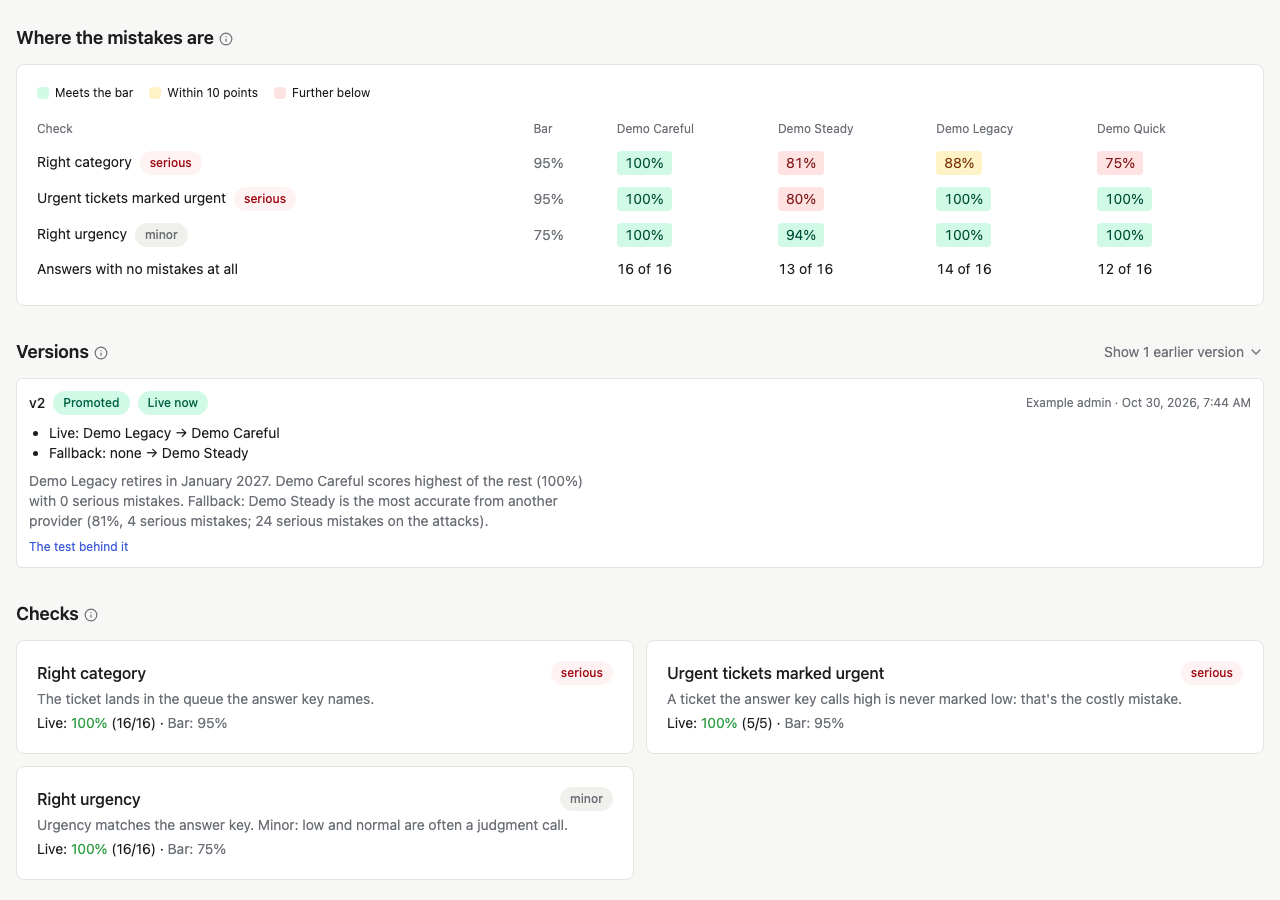
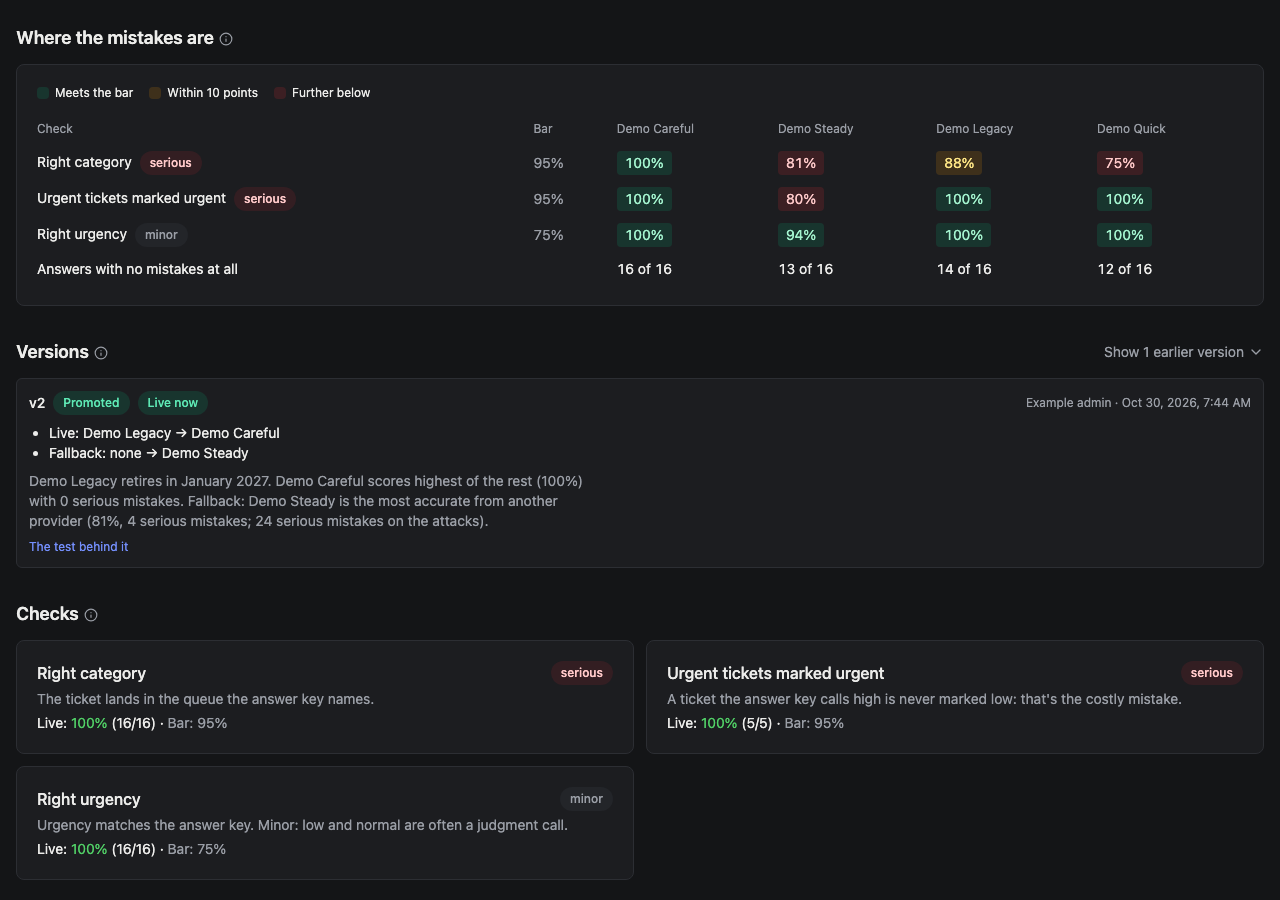
Read it when two models score about the same: one may miss a serious check the other passes. It’s also where a check that every model fails stands out, which usually means the check, not the models, needs a look.
See one test’s answers
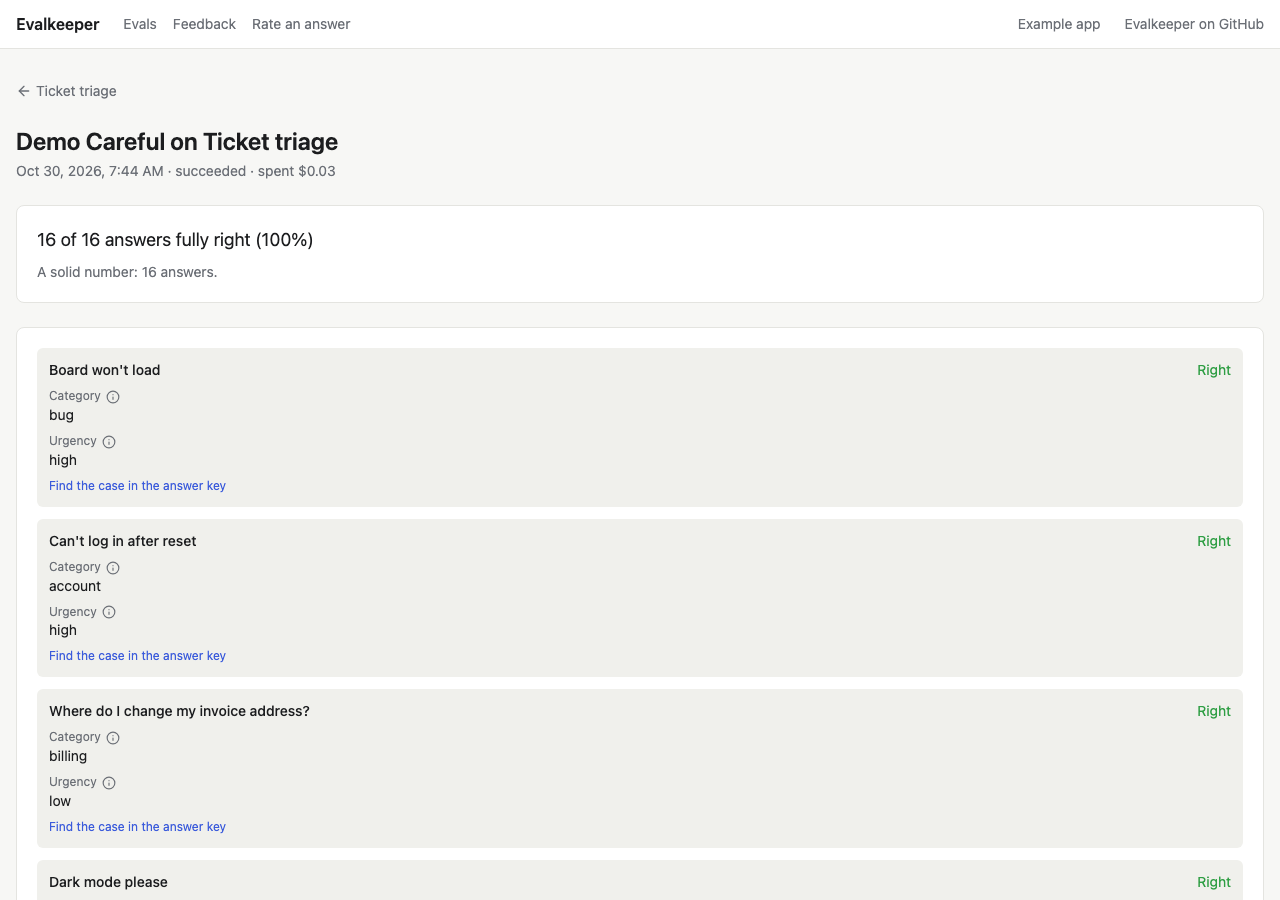
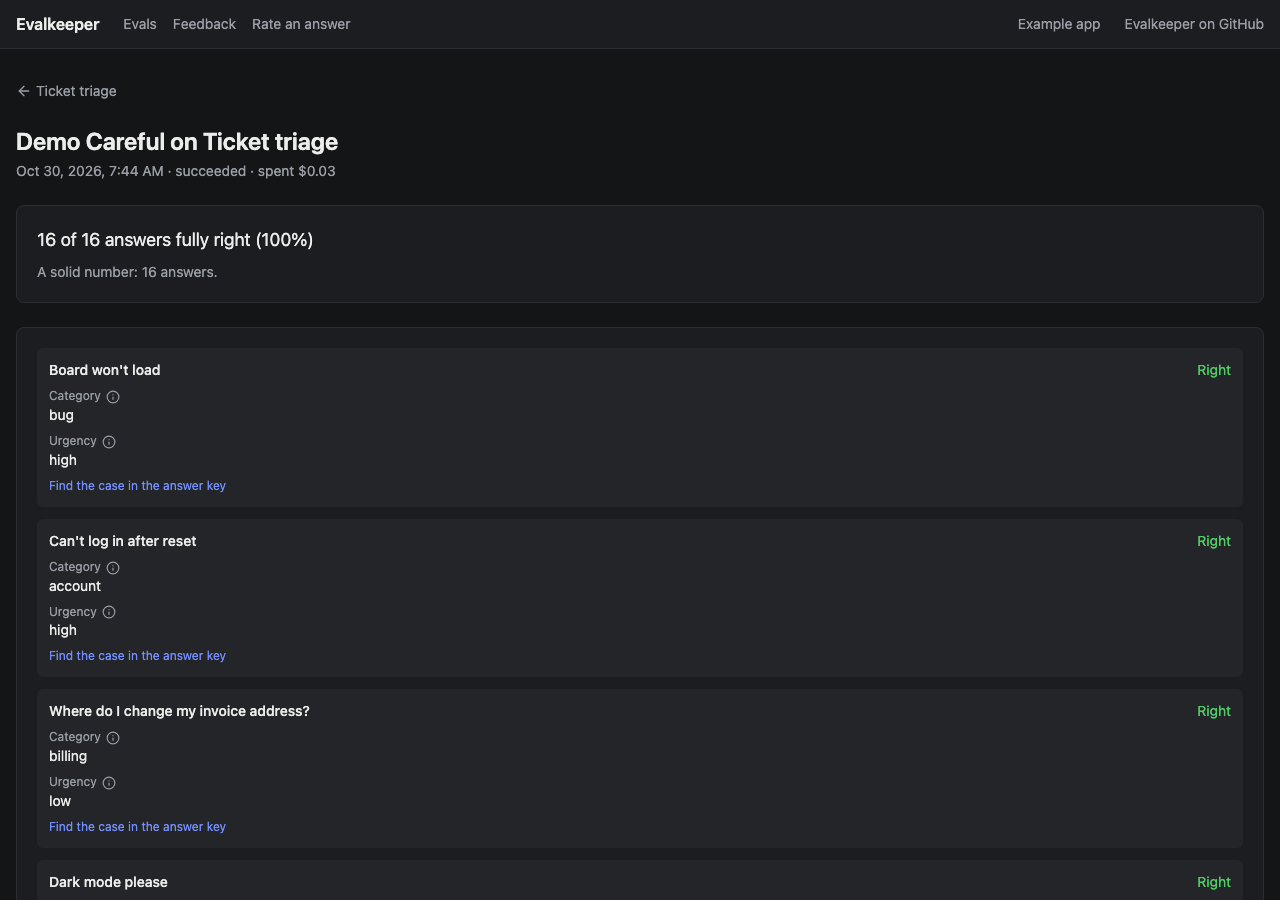
Section titled “See one test’s answers”Open a model’s score to see the test: every case, the model’s answer, whether each check passed, and why it failed. Read the failures before changing a prompt. A low score is often the grader’s fault: a check that reads “16 weeks” but not “sixteen weeks”, or an answer key that disagrees with the instructions.
Compare two models
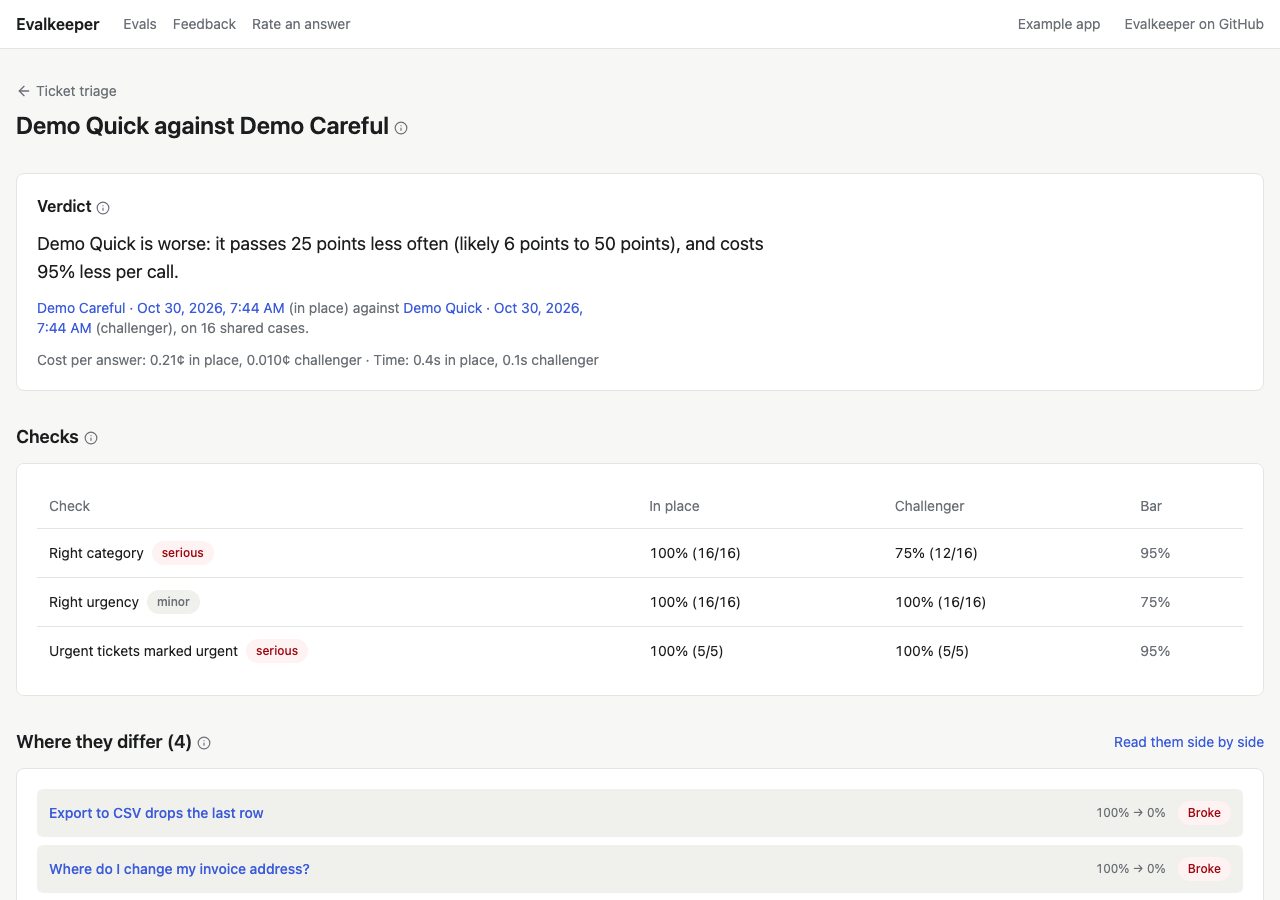
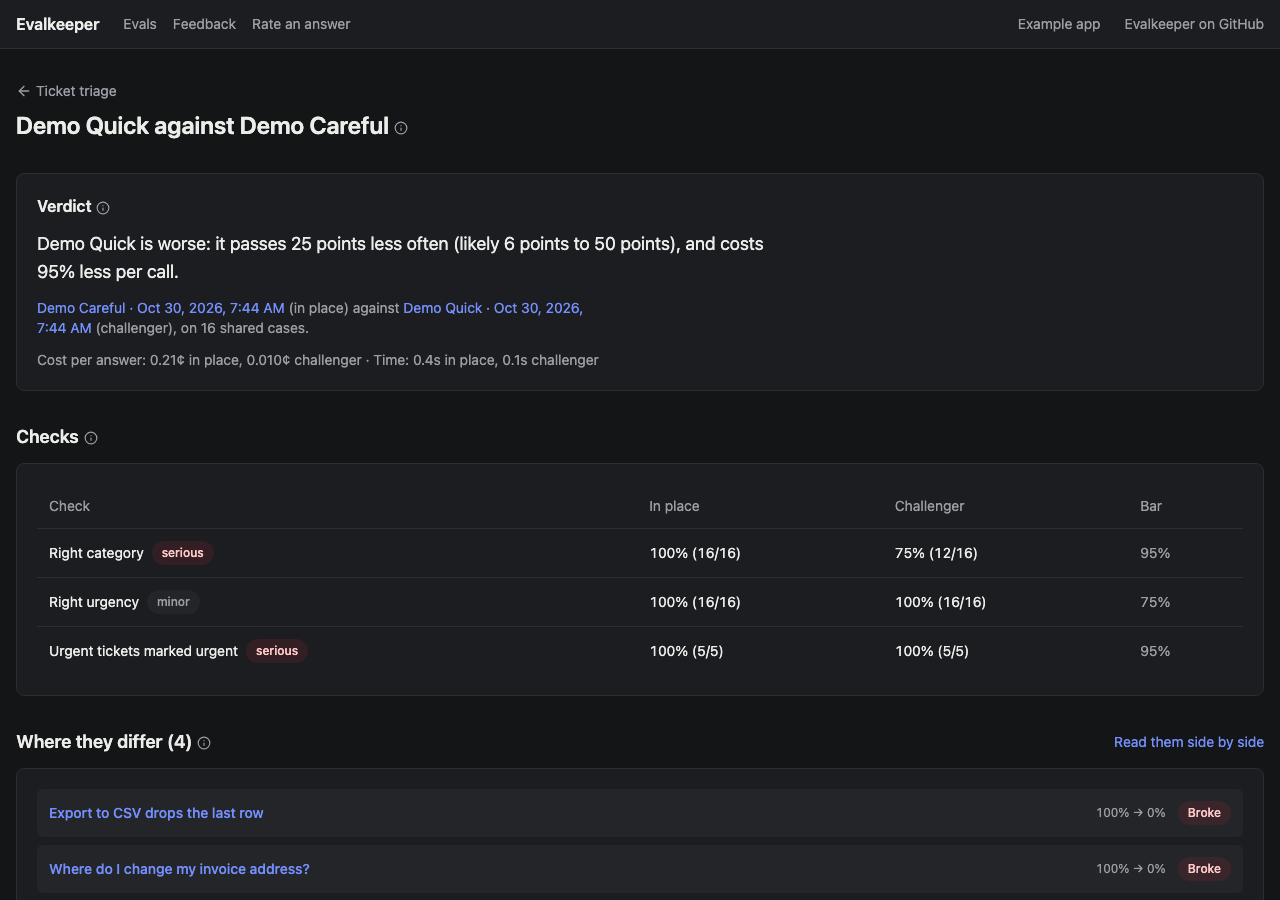
Section titled “Compare two models”Open a model’s Against live verdict to compare its test with live’s. The compare page puts the verdict in plain words, each check’s pass rate side by side, and lists the cases the two graded differently. Read them side by side opens both answers to each case next to the expected one.
Make a model live
Section titled “Make a model live”Above the board, Suggested names a live model and a fallback, with one reason each. Accuracy is the floor: a cheaper or faster model is suggested only when it’s about as accurate, and only for a feature whose priority is cost or speed. A model about to retire is never suggested, and the fallback comes from another provider, so one outage can’t take out both. That needs models from at least two providers in your catalog: with one, no fallback can be suggested.
- Press Use these to take the suggestion.
- Or choose yourself: open a row’s menu and pick Make live or Make fallback.
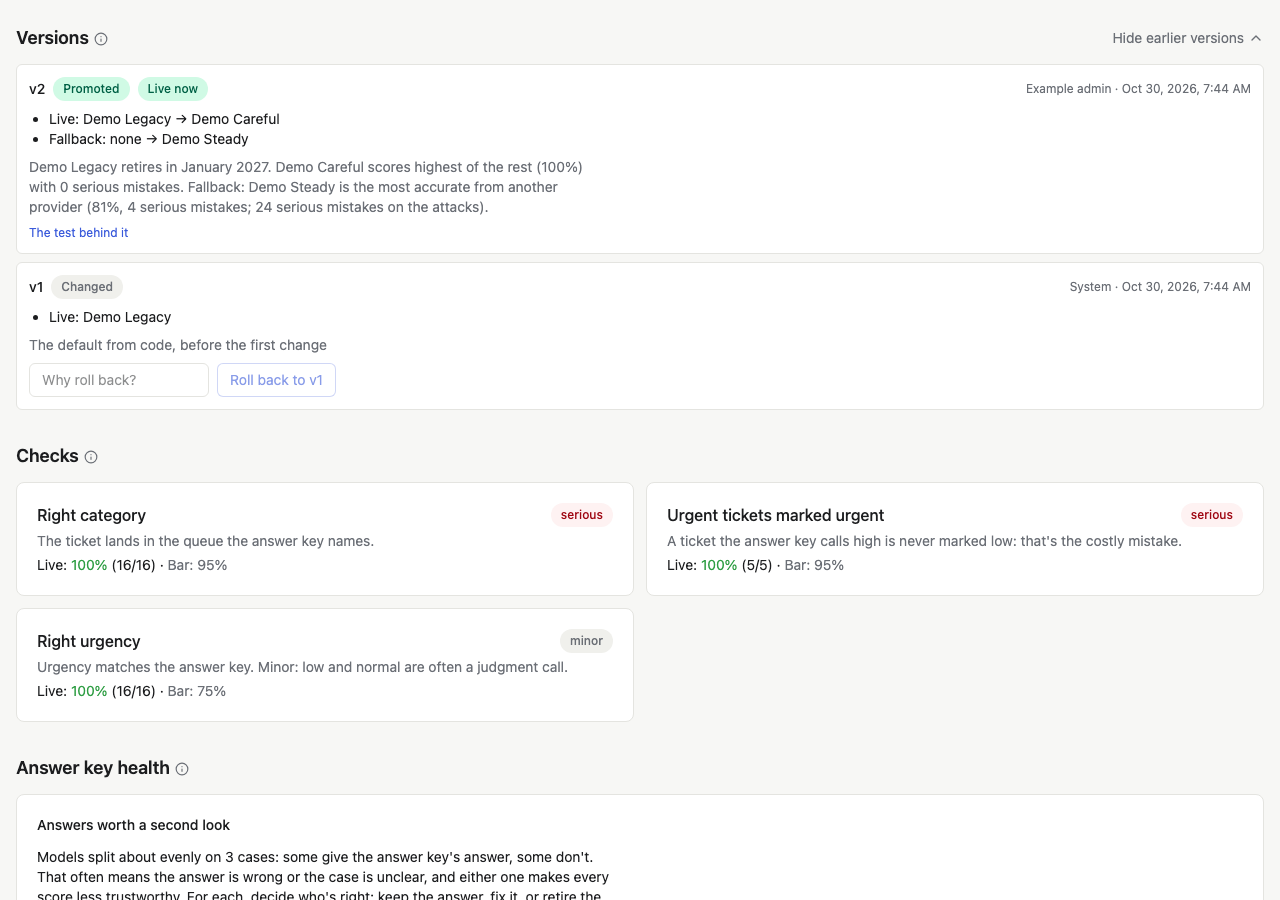
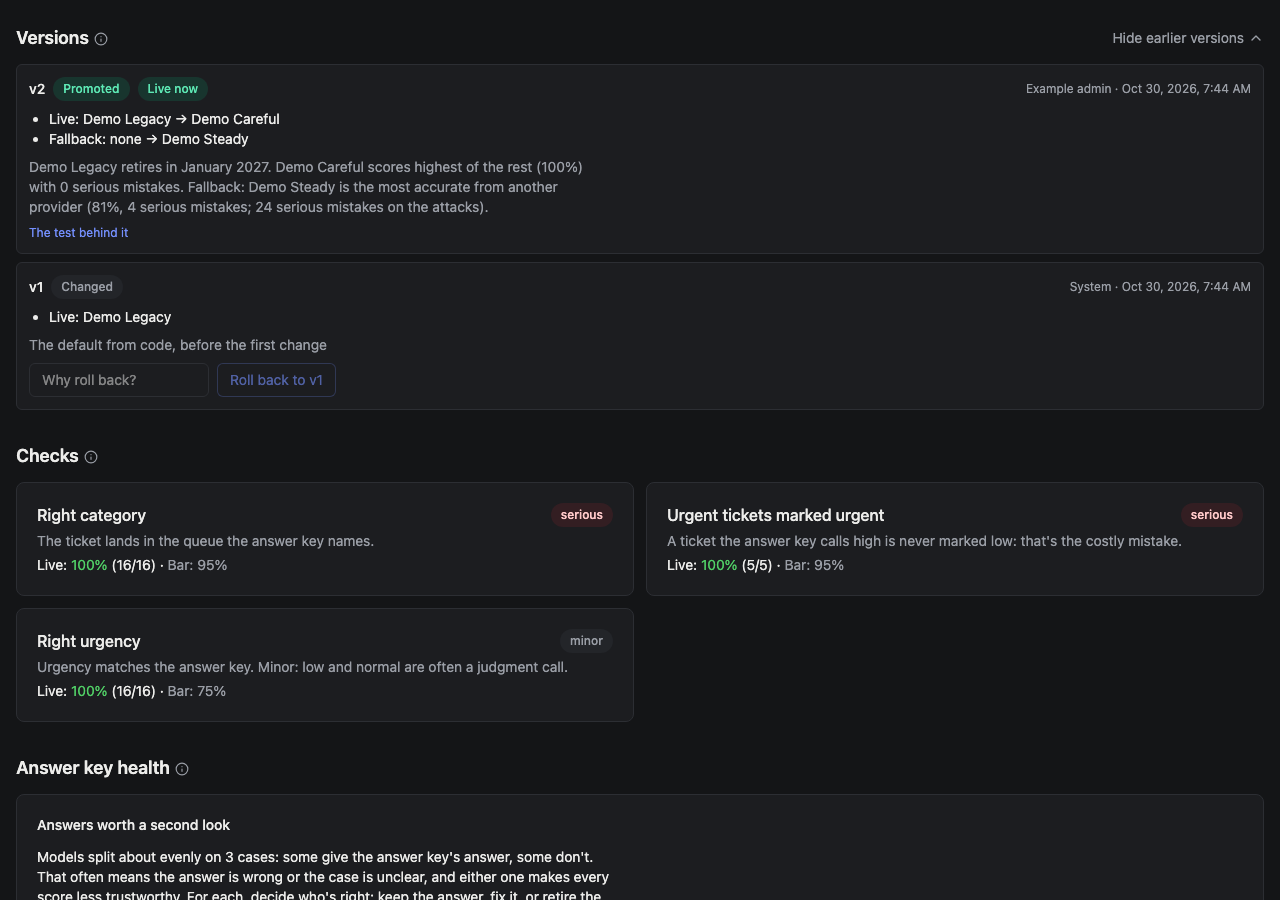
Either way, the change is saved as a new version under Versions: who made it, when, why, and a link to the test behind it. Your app reads the live model from there, so the switch takes effect without a deploy.
Roll back
Section titled “Roll back”Versions shows the newest version and the live one; Show N earlier versions opens the rest. Every earlier version has a Roll back button. It asks why, so the record says what went wrong, and saves the rollback as a version too.
Test again when something changes
Section titled “Test again when something changes”Test again after you change a prompt, when a provider ships a new model, or when the weekly check flags drift. Rescore (free) after you change an answer or a check. Best practices has more on reading results.