
Build your answer key
A feature’s answer key is its set of cases: real inputs, each with the answer a person on your team confirmed. It’s what every model is graded against, so a test is only as good as its answer key. This guide covers adding cases, confirming their answers, and keeping a model’s guesses from becoming the truth.
Every feature’s answer key is at the bottom of its page in your admin.
How many cases
Section titled “How many cases”Start with 10 to 20 real inputs, with names and personal details removed, and grow toward 50. Pick the inputs that matter: the common ones, the ones that went wrong before, and the edge cases a person would argue about. A score on a handful of cases can be off by a lot; every score says how many cases it rests on and how far off it could be.
Keep a few cases aside as a held-out set (TEST) that you never tune
your prompt against, and tune against the rest (DEV).
Add a case by hand
Section titled “Add a case by hand”Press Add a case at the top of the answer key. Fill in the input as your feature would see it, then the right answer, and save. A case you add with its answer is confirmed: you’re the person who said it’s right.
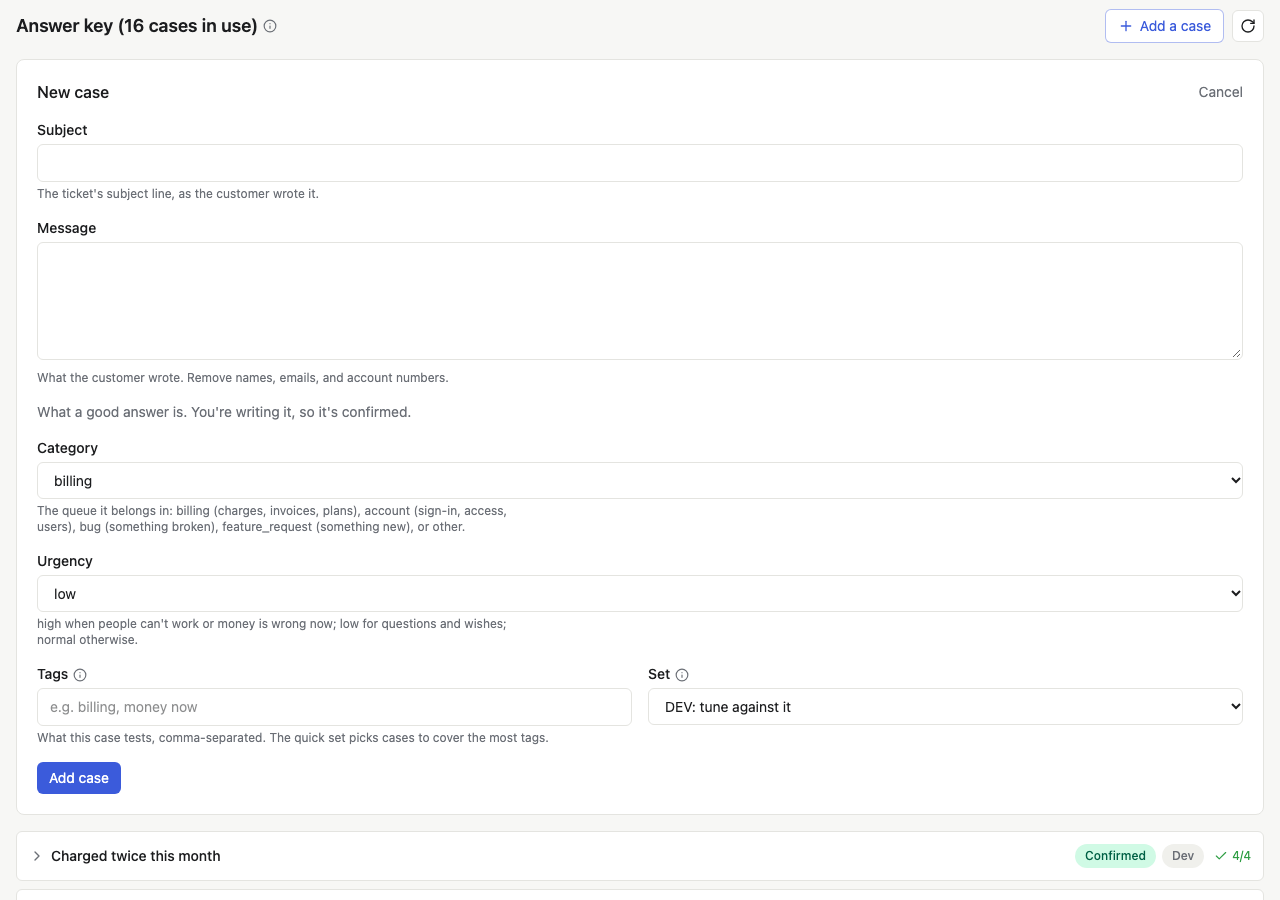
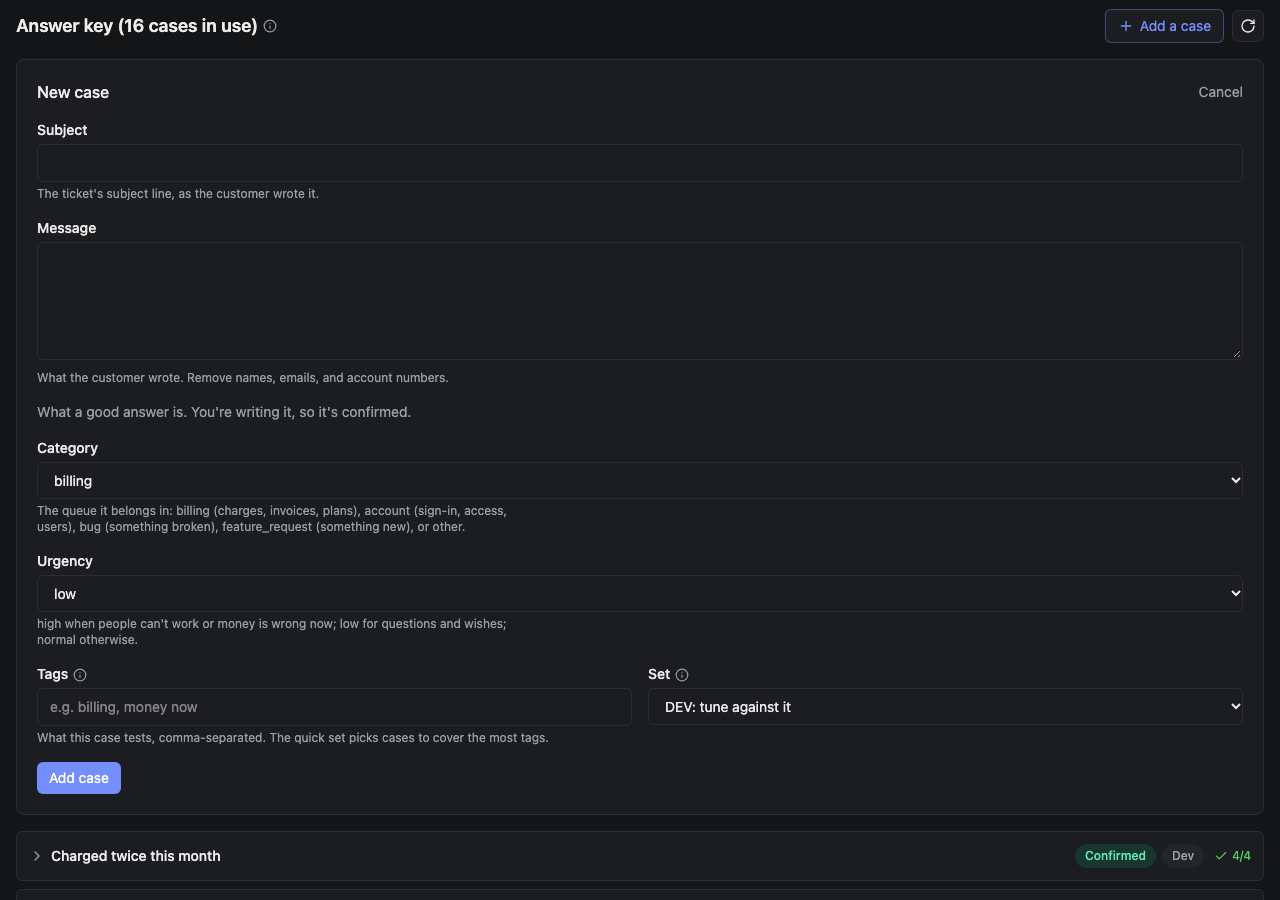
Each field has a label and a short help text from the suite, so a
teammate confirming answers weeks later knows what each one means. Where
judging an answer takes more than that, the suite’s answerGuide is a
press away: the info button beside Answer key opens it as How to
judge an answer.
Start from the suite’s cases
Section titled “Start from the suite’s cases”A suite can come with starter cases. When some aren’t in the answer
key yet, it offers Add N starter cases. They arrive pending, to
confirm like any draft, unless the suite’s author already reviewed them.
A starter you retired isn’t offered again.
Describe the cases you want
Section titled “Describe the cases you want”On a suite with draftMore, Add a case has a second tab, Describe
them. Say what you want in your own words (“three guardrail cases where
the person states a salary floor”) and how many. A model writes them
from that and the cases you have. Each arrives pending, split between
DEV and TEST like any new case, and counts only once you confirm it.
Answer key health helps too: pick topics that have only one case and
press Draft cases for the topics you picked. On a suite without
draftMore, a topic opens Add a case with it already tagged.
Confirm drafted answers
Section titled “Confirm drafted answers”Cases also arrive as drafts, with an answer someone or something proposed but nobody has checked:
- A model drafted it, from your app’s real activity (the weekly check can draft a few a week; see Keep the answer key useful).
- A thumbs down was turned into a case (Thumbs from your users).
- An import brought in test data you already had (Cases you already have).
- You asked for more with Draft N more cases, above.
A draft’s answer is Pending: it’s never graded against. Open the case, read the input and the proposed answer, and either press Confirm this answer or fix it first with Edit answer. Confirming one opens the next draft waiting, so you can work through them in a row.
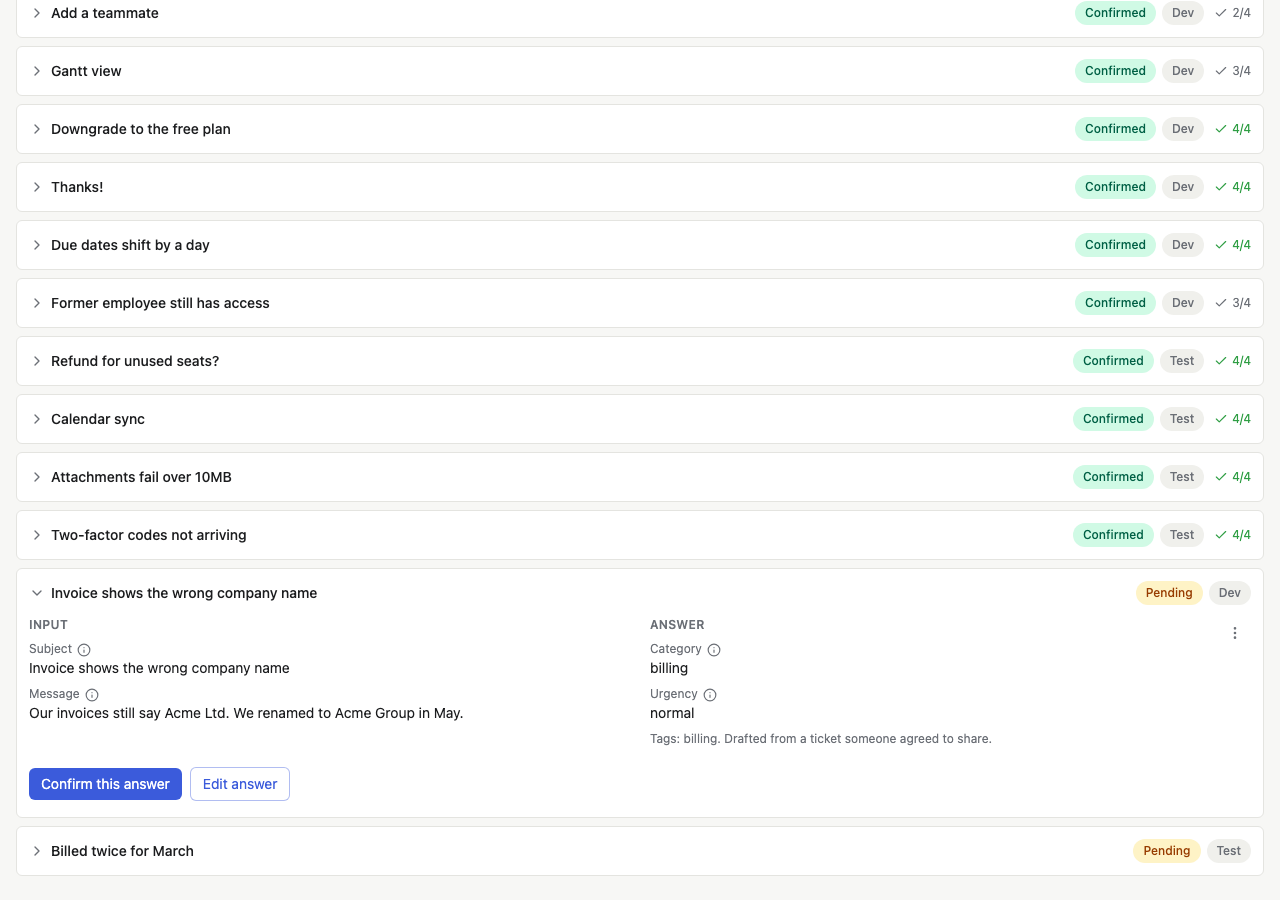
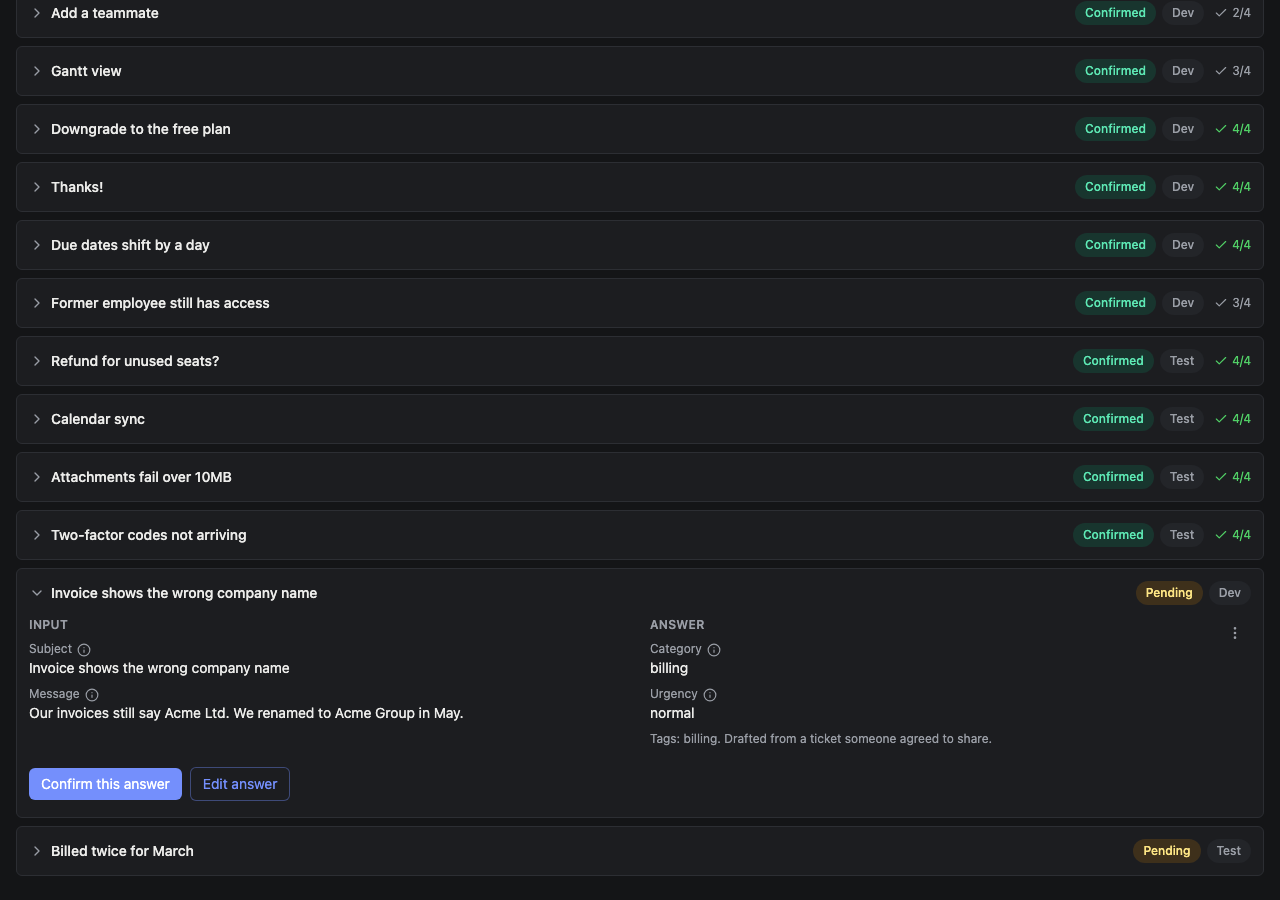
When a model drafts many cases at once, have it flag the ones it’s unsure of and review those first, and check every term in its answer against the input. In one app, 43 of 218 drafted terms were things the input never said.
Answers you can use before you’ve checked them
Section titled “Answers you can use before you’ve checked them”Sometimes the owner says “use them so we can test, I’ll review later.” Provisional answers are used by tests, and every score that rests on them says so. Import answers as provisional, or press Test with drafts, as provisional above the answer key to put every pending one to use. Open one to Confirm this answer as it is or Edit answer first. Nothing is ever confirmed on someone’s behalf.
Rate blind
Section titled “Rate blind”When a feature’s cases are items your app already handled (the cases
are real tickets, and the answers are what someone did with them), what
someone did isn’t proof it was right, and seeing what the app decided
sways the person rating. For these suites (caseKind: "imported"), the
answer key links to Rate blind: one case at a time, its input only,
never the app’s answer. Give the right answer and a reason, or skip it.
Each rating is that person’s own confirmed answer.
Leave it off with rateBlind: false on a suite whose answers are one
person’s own, such as a verdict on their own data, which nobody else can
give, or when your app has no rate page.
Answers that came with a suite
Section titled “Answers that came with a suite”The ready-made crisis risk and hopelessness suites ship cases their author already reviewed. They arrive confirmed and marked Author reviewed (or Expert reviewed). Read them anyway: your app’s users may say things differently. Change any answer you disagree with; your answer takes over, and the shipped review never replaces it.
When you change an answer
Section titled “When you change an answer”Changing or confirming an answer makes earlier tests Out of date on the board. Press Rescore tests to grade the answers those tests already have against the new answer key. It’s free: rescoring never calls a model.